

Question:
How to change my AiElements user account password?
Quick Answer:
-
Log in to AiElements Dashboard with your user ID and current password.
-
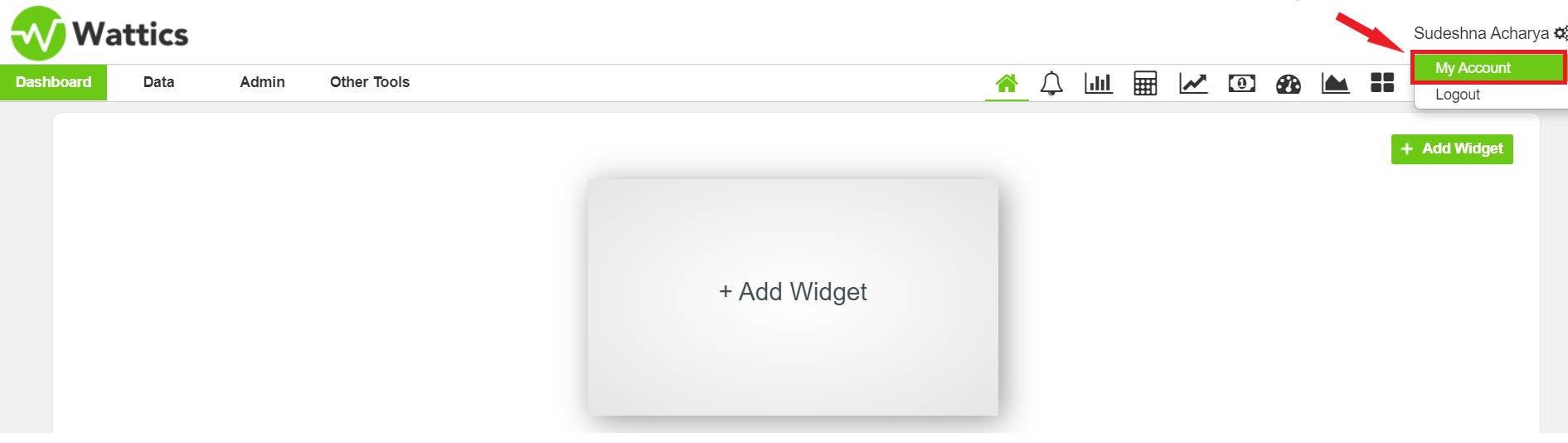
Click "My Account" from the drop-down menu that appears upon clicking your name at the top right corner.
-
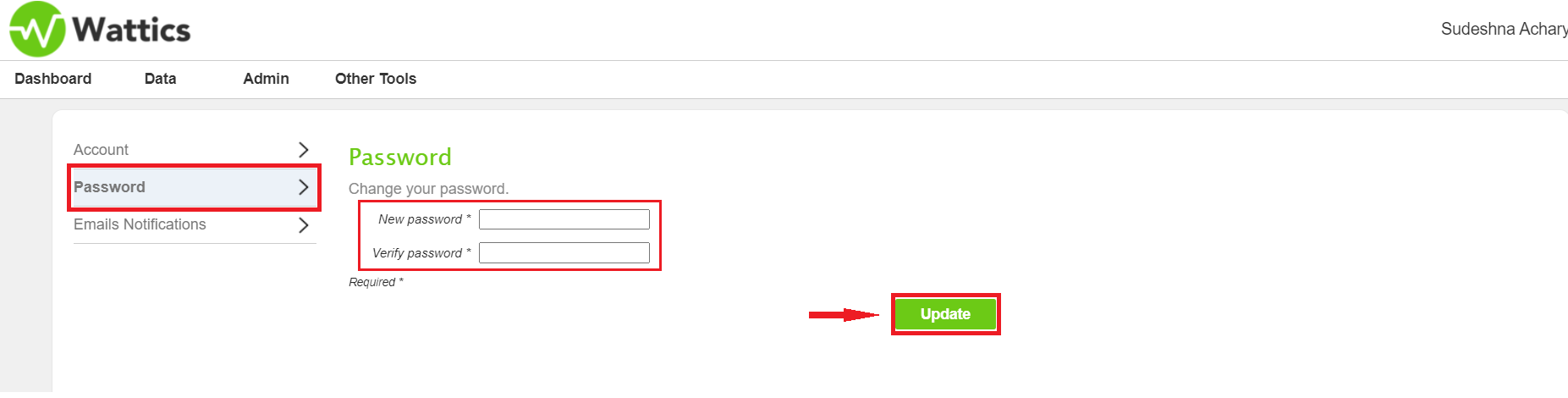
Click "Password" from the left-hand side menu to change your password.
-
Enter and verify (confirm) your new password
-
Click "Update".
Detailed Answer:
To change your AiElements account password, first, log in to AiElements dashboard with your user ID and current password. Next, you will need to click on your name visible at the top right corner of your AiElements dashboard and then click on "My Account" from the drop-down menu that will appear.
The next screen should look like the screenshot below. On the left-hand side menu appears the option "Password". Upon clicking this, the system will ask you to enter the password of your choice and then verify (confirm) your new password by entering it a second time. Click "Update" to set your new password.
If you face any difficulty changing your AiElements account password, feel free to contact the AiElements Success Team at success@ai-elements.com