


Green Button users are organisations and individuals who have access to their utility-usage data (electricity, gas, water) via a Green Button on their utility or retail energy supplier website. This posts documents how to upload GreenButton data to the AiElements Dashboard.
STEP 1: Get your GreenButton data from your retail energy supplier
The list of of utility suppliers supporting GreenButton can be found here.
Unless you already have access to an online account with your utility supplier, you will need to create and log in to your account on their website, and then look for a way to download the usage information. Look for “share my data” or “energy hub” or “usage history” or “save money” – there are many different website areas that could have the information. You will find there a Green Button logo to click or a similar button.
Unless you are given no options, you must define what data you want to export. You usually can choose
the Resource Type (electricity, natural gas, water), the Date Range (start-and-end or a number of
months), and whether you want to Download or Connect (share) your data. Enter your preferences and
select Download. The file uploaded will be in the Extensible Markup Language (.XML) format, this is
the file that you will upload to AiElements.
STEP 2: Log in to your AiElements dashboard to import your GreenButton data
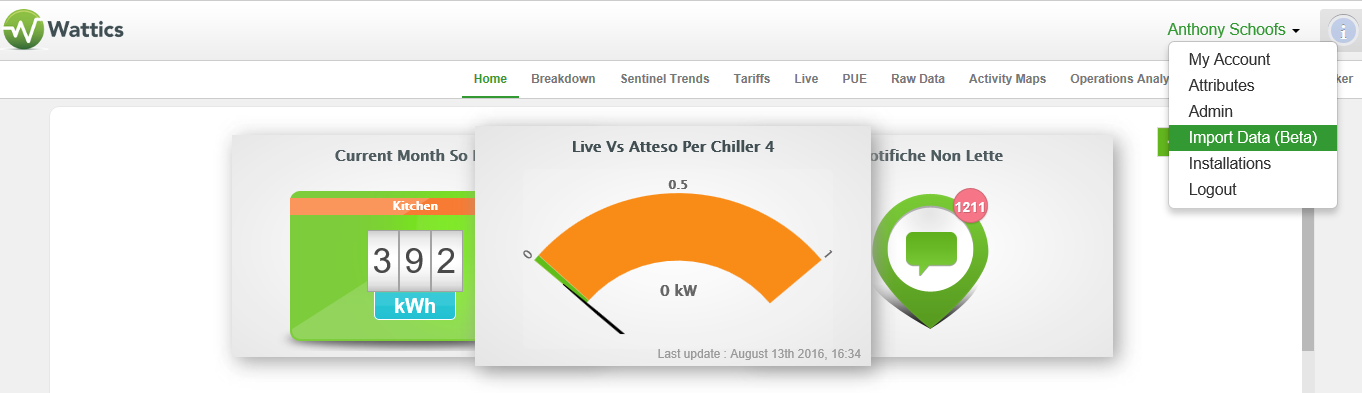
Set up a AiElements Dashboard account on ai-elements.com. Once logged in, click on your name in the top right hand corner of the dashboard to select Import Data.
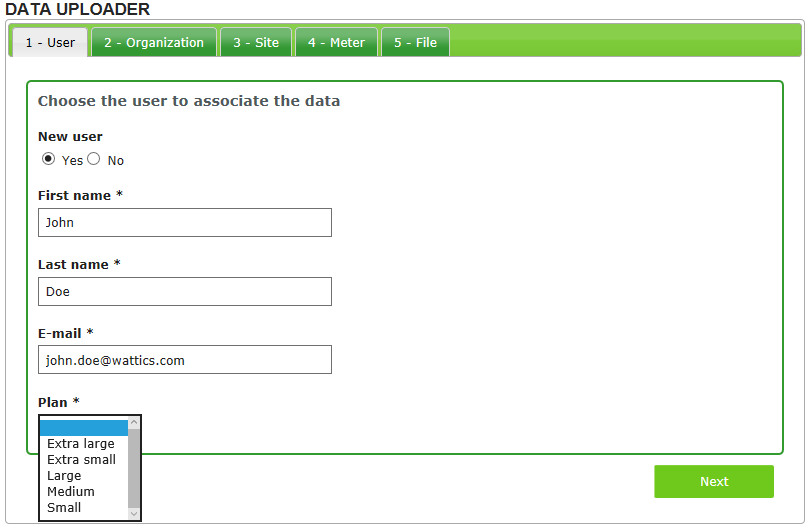
In the User tab, you can either:
1) Create a new user if you want a person with no dashboard account to be notified of that data
import and be given access to the dashboard (e.g. you upload historical data for a new customer
installation)
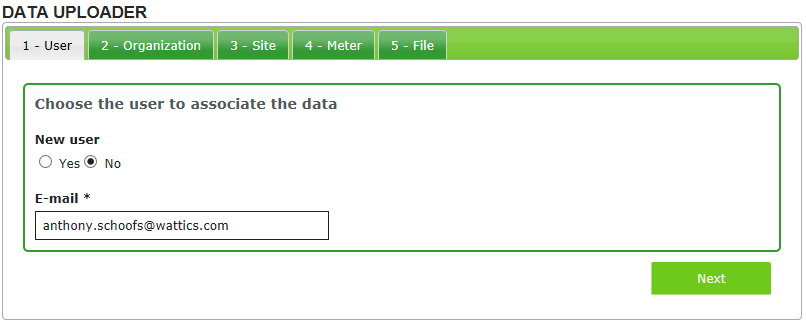
2) Select an existing AiElements user to which that data import will be associated to (e.g.
yourself or the person in charge at the site)
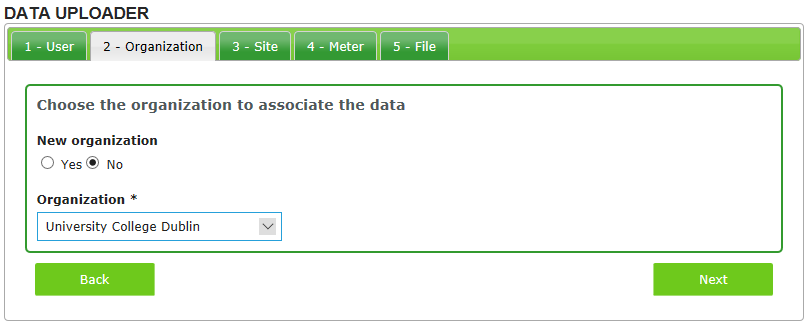
You must then fill in the details about where the data should be located in your dashboard. For that you will need to link the data to an existing organisation, site or meter, or create new ones.

The first step is to select whether you want to create a new organization
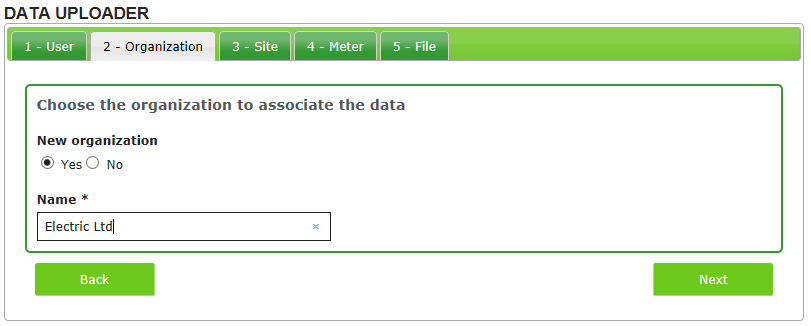
or upload data to an existing one.
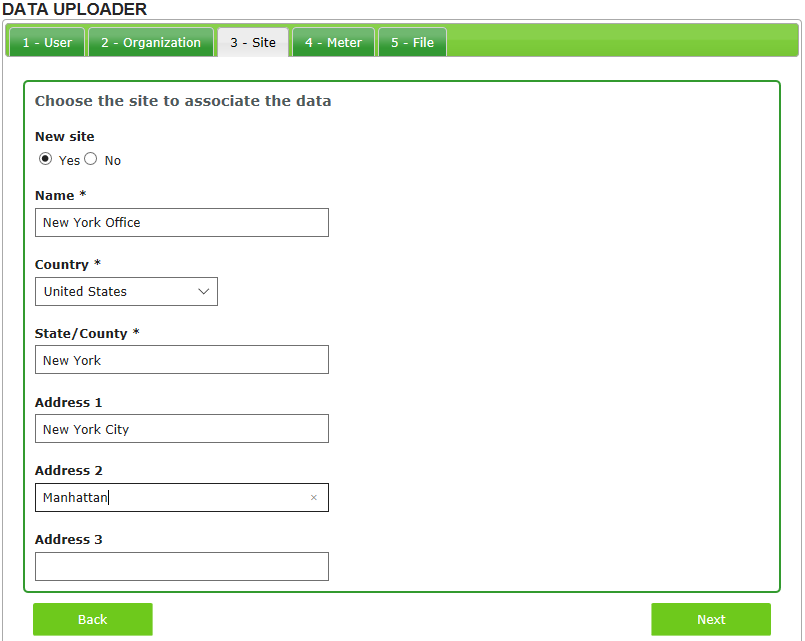
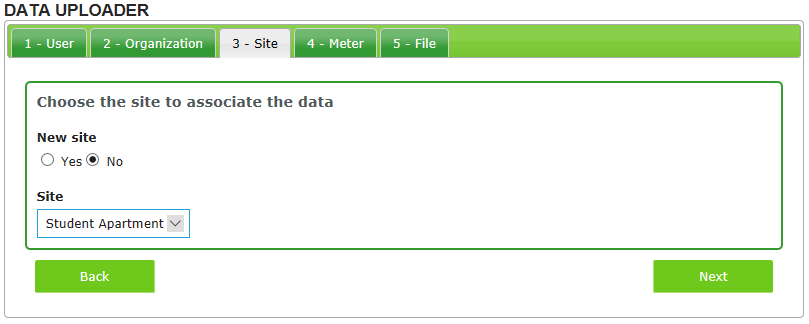
Then, you must decide if the data belongs to a new site within that organization, or to an existing
site.
Finally, you must decide if the data belongs to a new data point or an existing one. If you wish to create a new data point (meter), you must give it a name, select the meter type (use Environmental Data for any single-value measurement), and the measurement unit. For existing meters, the data uploaded will be appended to existing measurements and will overwrite existing data if some periods overlap.

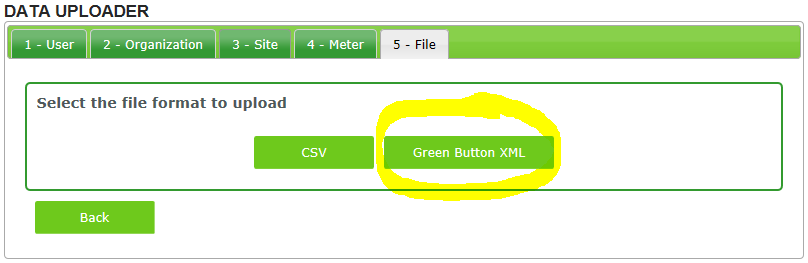
Time to upload your GreenButton file to the system. Click on the GreenButton XML button to get
started.
You can now upload your GreenButton XML file with the Upload button, and specify the
timezone where you building is located.
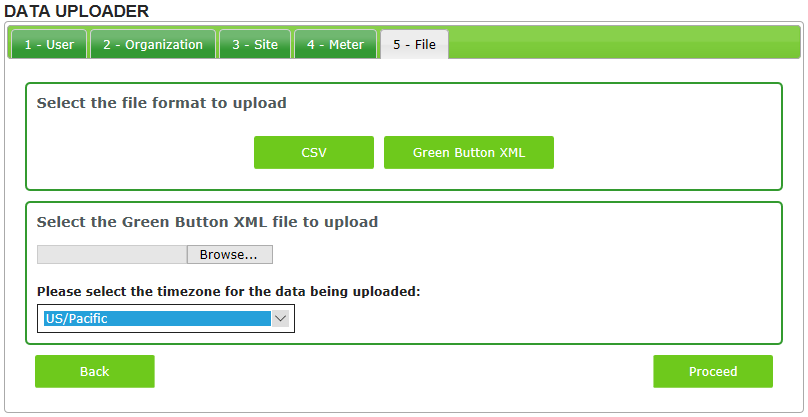
Click on the Proceed button and review all the information you have entered. Click
on the Confirm button to start uploading data, or close the preview page to keep updating. Data
upload may take a few minutes depending on how much data you are importing.
That’s it, you can now go back to your dashboard and start analyzing the measurements freshly imported! Contact us for more information on software fees.
+353 (0)1415 1242 | info@ai-elements.com | Contact
us
Anthony Schoofs
Chief Technical Officer at AiElements
Anthony drives AiElements' innovation on energy efficiency for industrial and grid environments. Anthony is also behind WSNbuzz.com, a blog covering technology advances within the smart grid and IoT markets, and was listed in 2011 amongst the top 100 IoT thinkers. Anthony was recently awarded the Globe Sustainability Research Award for his contribution to advancing knowledge on sustainability.
Latest posts by Anthony Schoofs (see all)
-
Export your AiElements data to Tableau business intelligence software - December 8, 2017
-
Connect your Schneider PowerLogic PM8000 meter to AiElements with the Obvius AcquiSuite EMB A8810 Data Acquisition Server - December 7, 2017
-
Connect your EIG Nexus 1500 meter to AiElements with the Obvius AcquiSuite EMB A8810 Data Acquisition Server - December 7, 2017